
This article is a step-by-step tutorial aims that provides a detailed walkthrough of the entire procedure, from opening the image to making the final adjustments for print. Whether you are an experienced designer or new to the process, this guide will help ensure that your designs are prepared for optimal print quality.
STEP #1 – OPEN IMAGE
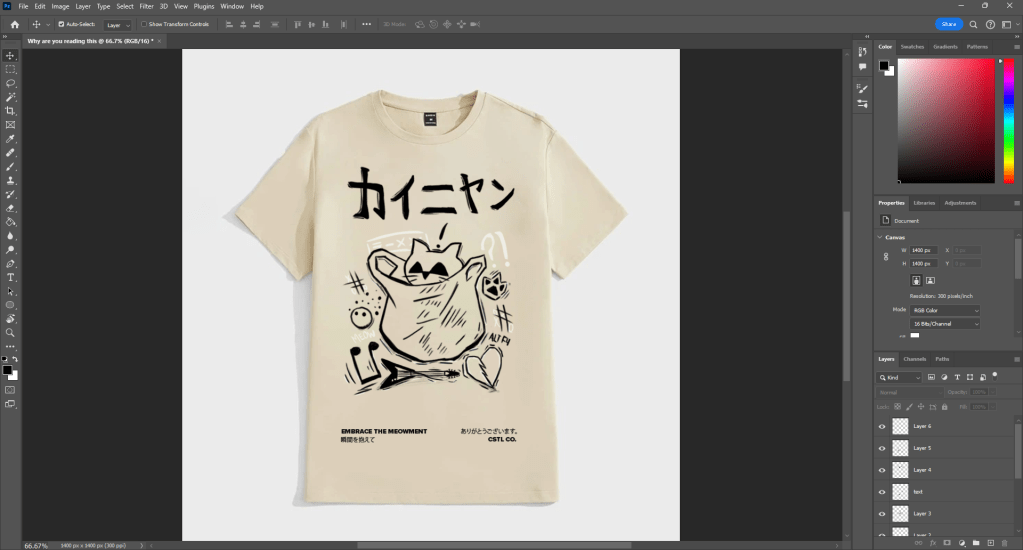
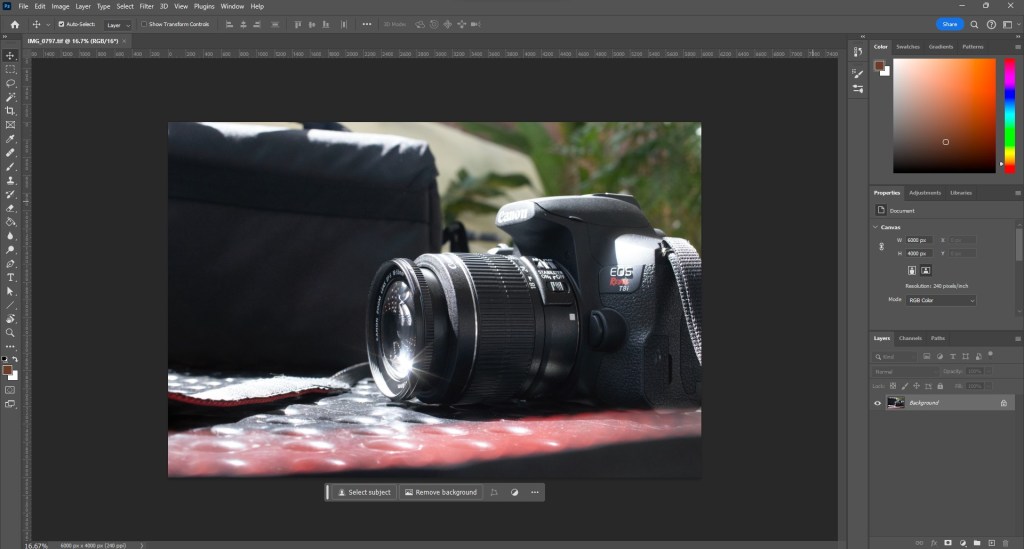
Open your image in Photoshop by importing the file you are working on or want to convert. Ensure that your image is in a format that supports CMYK, such as PSD.
STEP #2 – CHANGE MODE
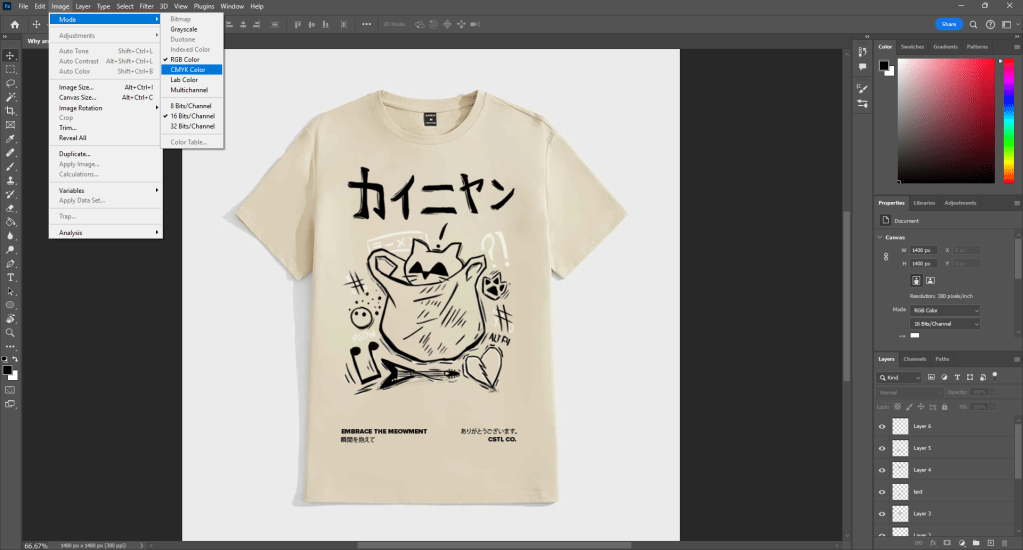
Look for the “Image” option in the menu bar at the top of Photoshop. Click on it and choose “Mode,” then select “CMYK color” to convert your image from RGB to CMYK.
STEP #3 – COLOR MODES/CODES
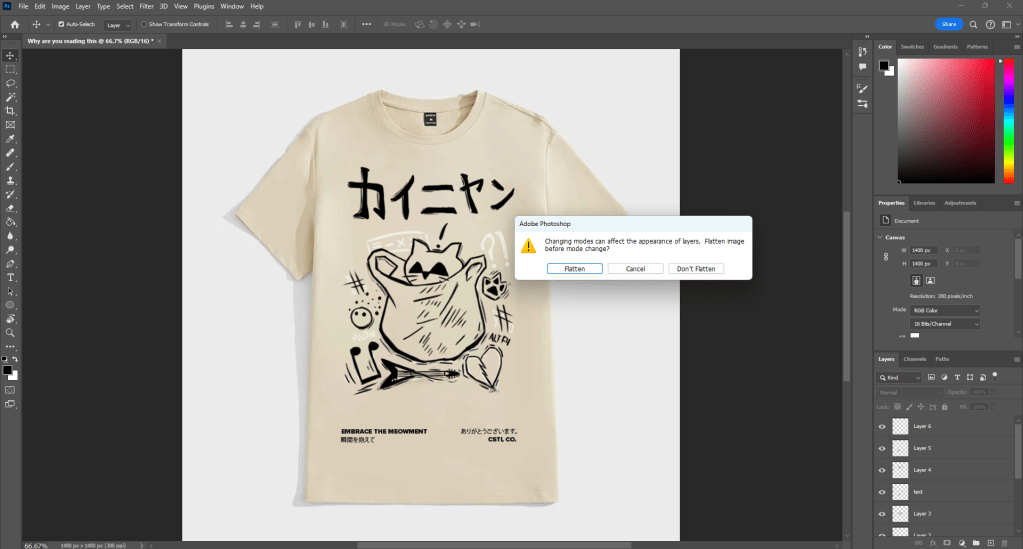
After converting to “CMYK color” Photoshop may give a warning about the color mode conversion. Read the warning, but in most cases, it won’t harm your design process. Remember, RGB is best for on-screen viewing, while CMYK is optimized for print.
STEP #4- CHECK AND ADJUST IMAGE QUALITY
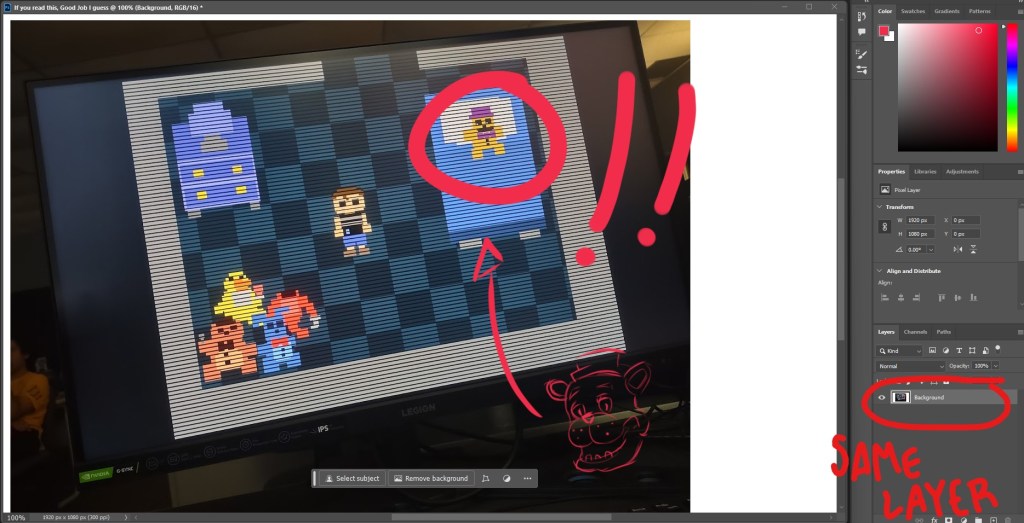
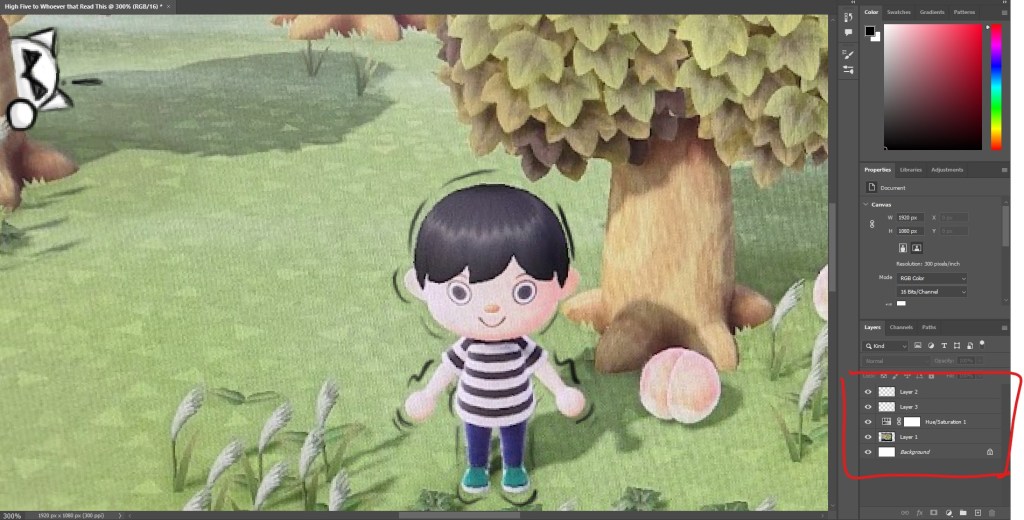
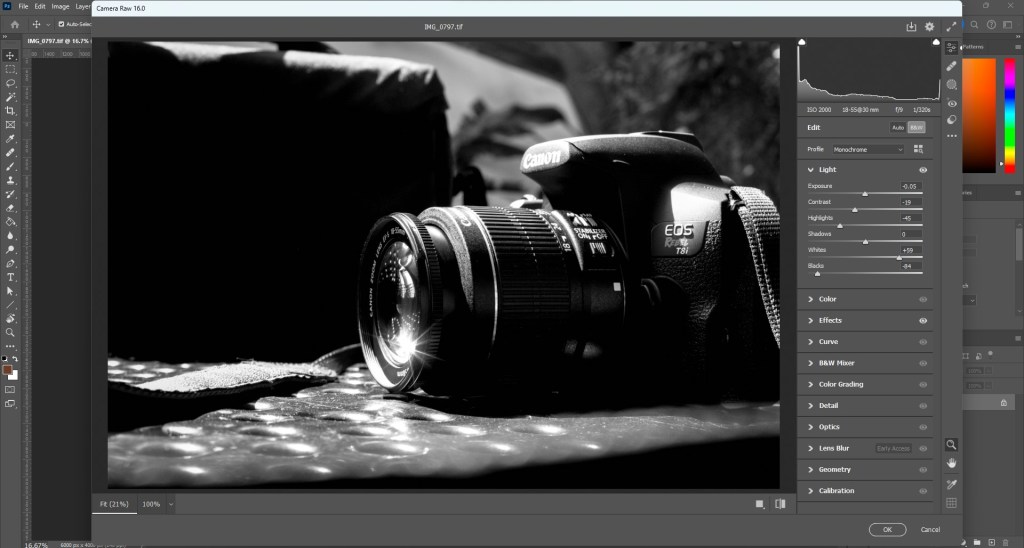
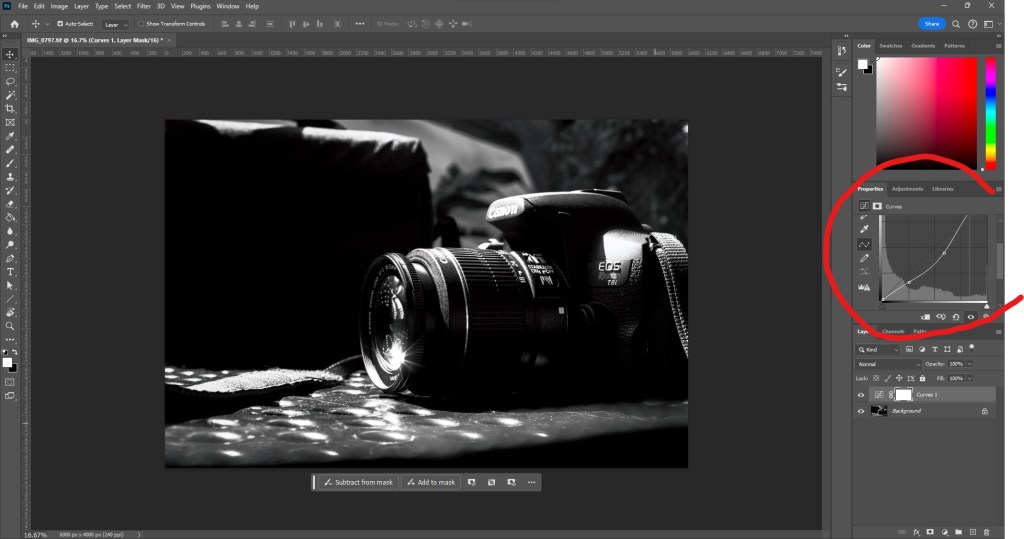
After converting to CMYK, closely examine any color shifts or quality changes in your picture. Some colors may appear differently in CMYK. Use the adjustments bar above your layers to make non-destructive adjustments if needed.

STEP #5 – SEE EFFECTS ON IMAGE
To see how your image will look when printed using CMYK, switch your document’s view to CMYK. Go to “View” then “Proof Setup” and choose “Working CMYK” This provides a preview of how your image’s colors will appear when printed.
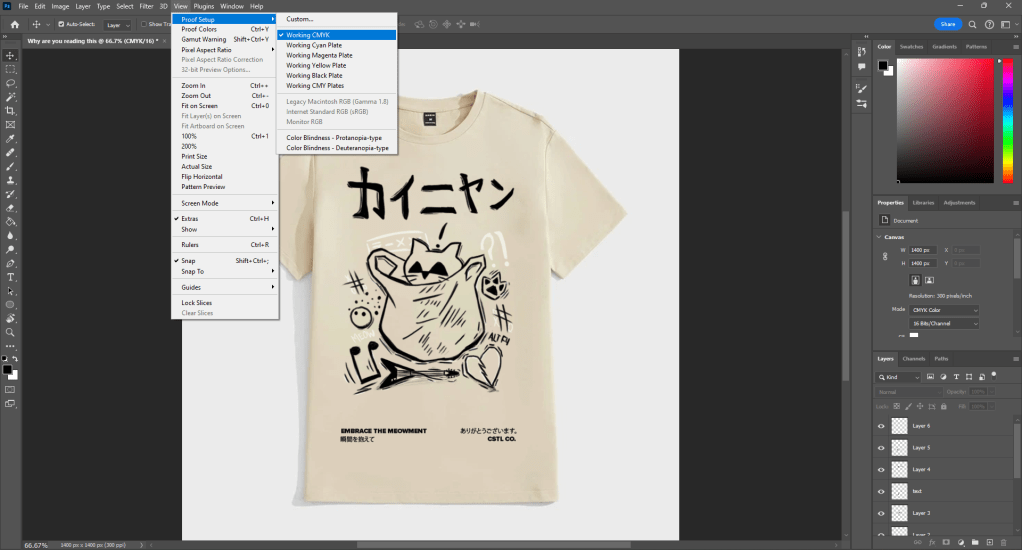
STEP #6 – ADJUSTING COLORS + COLOR GAMUT
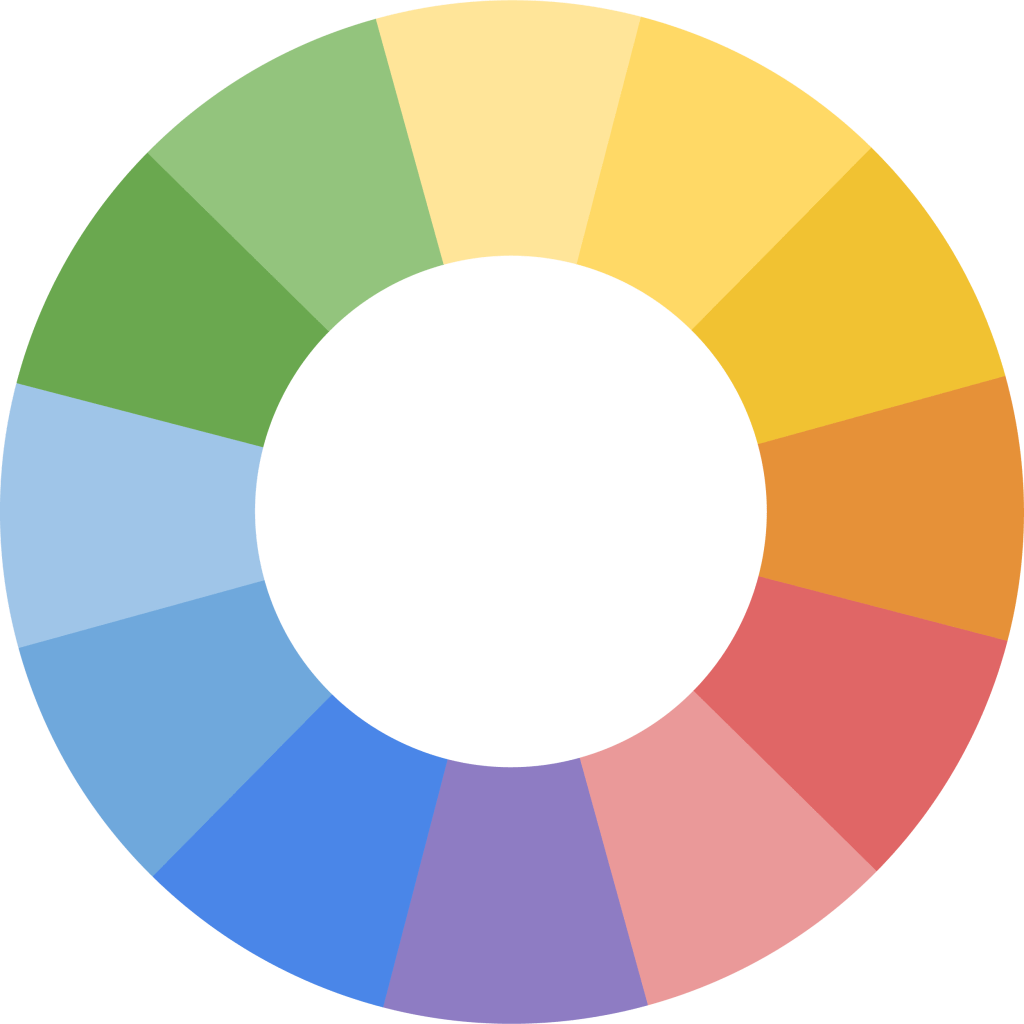
Use the “Gamut Warning” feature in the “View” preset to check for any colors that may be out of the CMYK gamut. If needed, make color adjustments using the adjustments panel above your layer panel, such as using “Hue/Saturation” to improve specific colors.
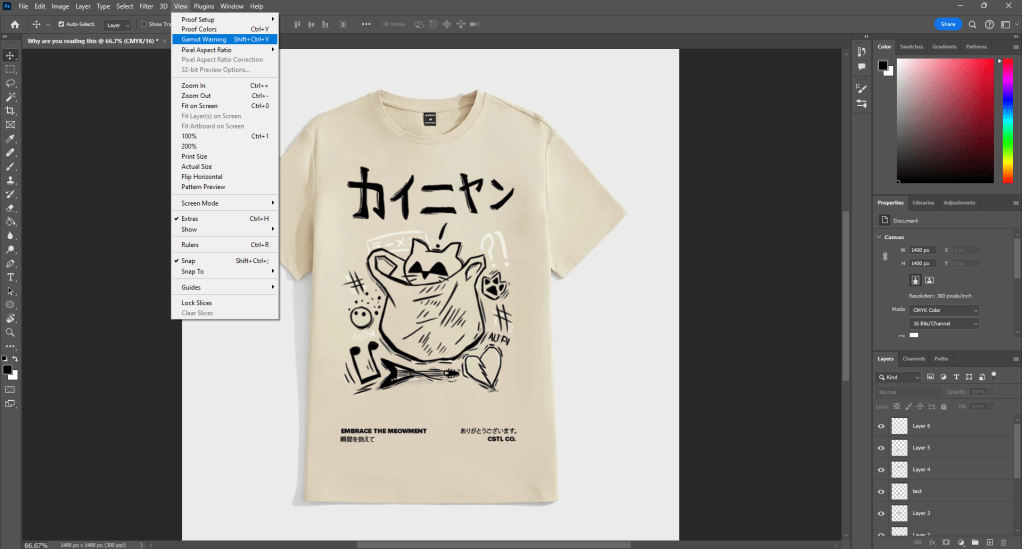
STEP #7 – FINAL TOUCHES
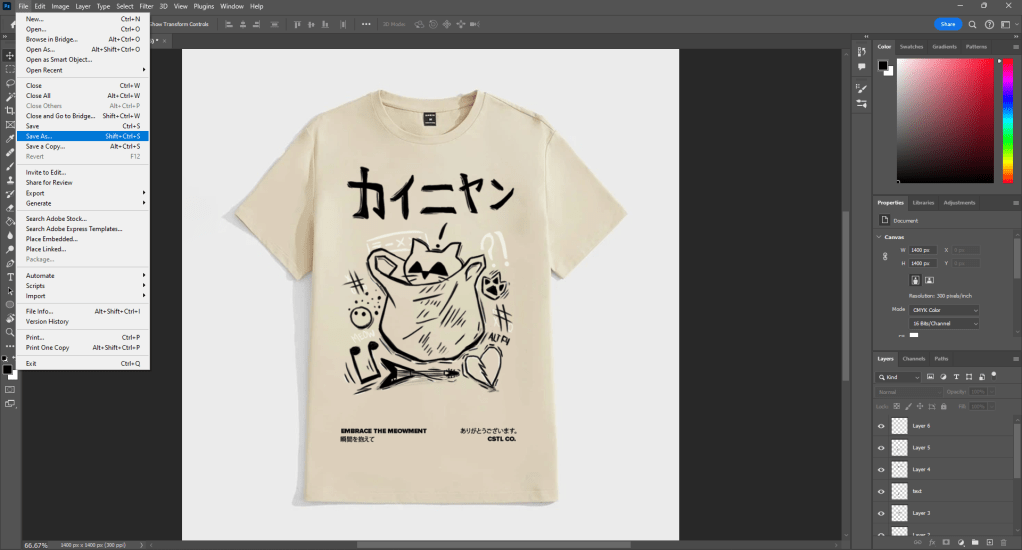
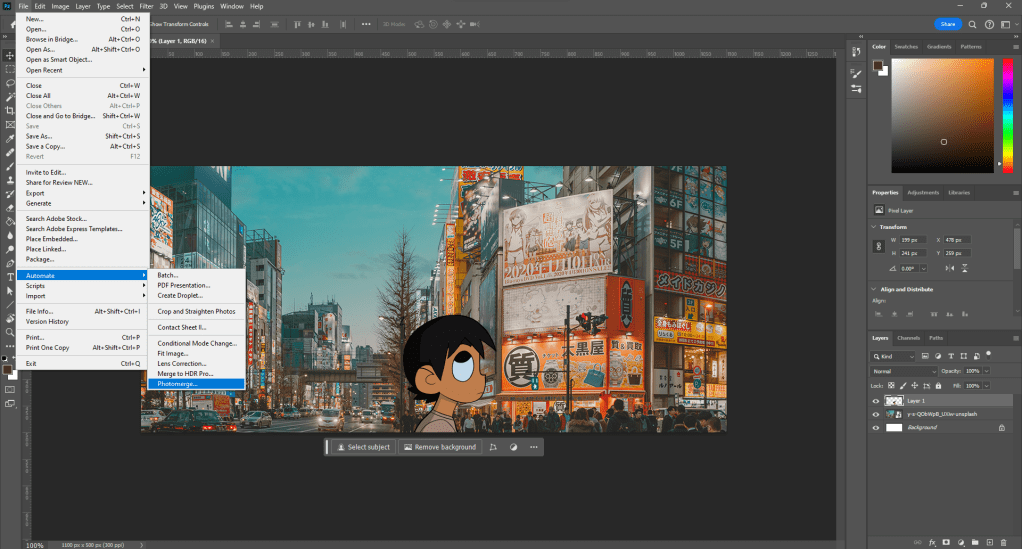
Make sure to save your work along the way. Before making final adjustments, save a copy of your file in PSD format suitable for printing. Go to “File” then “Save As” and choose PSD to preserve your original image in RGB and allow for further adjustments.
STEP #8 – SAVE FOR PRINT
Once you are filled with pride in your creation and satisfied with the alterations, it’s time to save it for print. Navigate to the top menu bar and choose “File” A dropdown menu will emerge, from which you should select “Save As” option. For a format tailored for printing, like PSD, and ensure to pick the suitable resolution for your printing requirements.
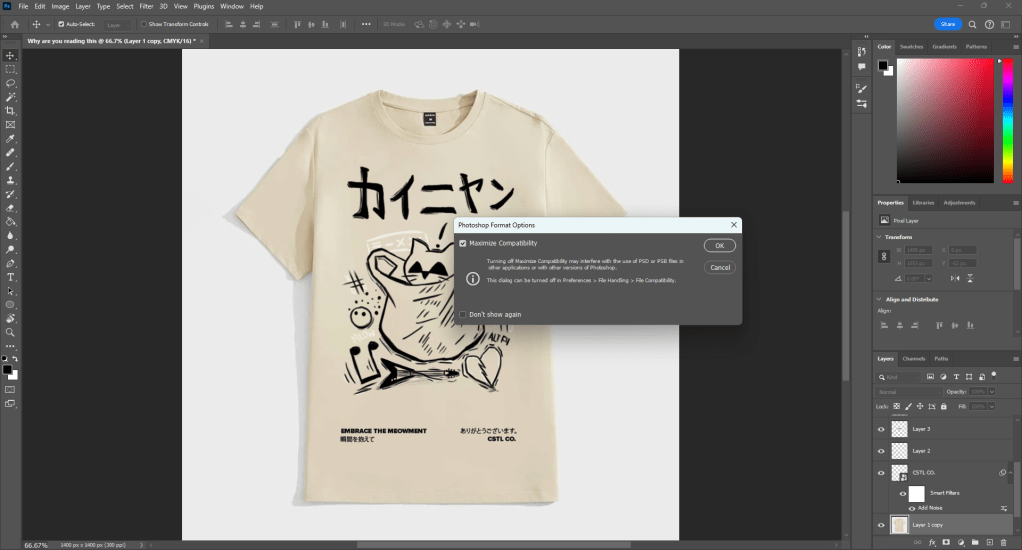
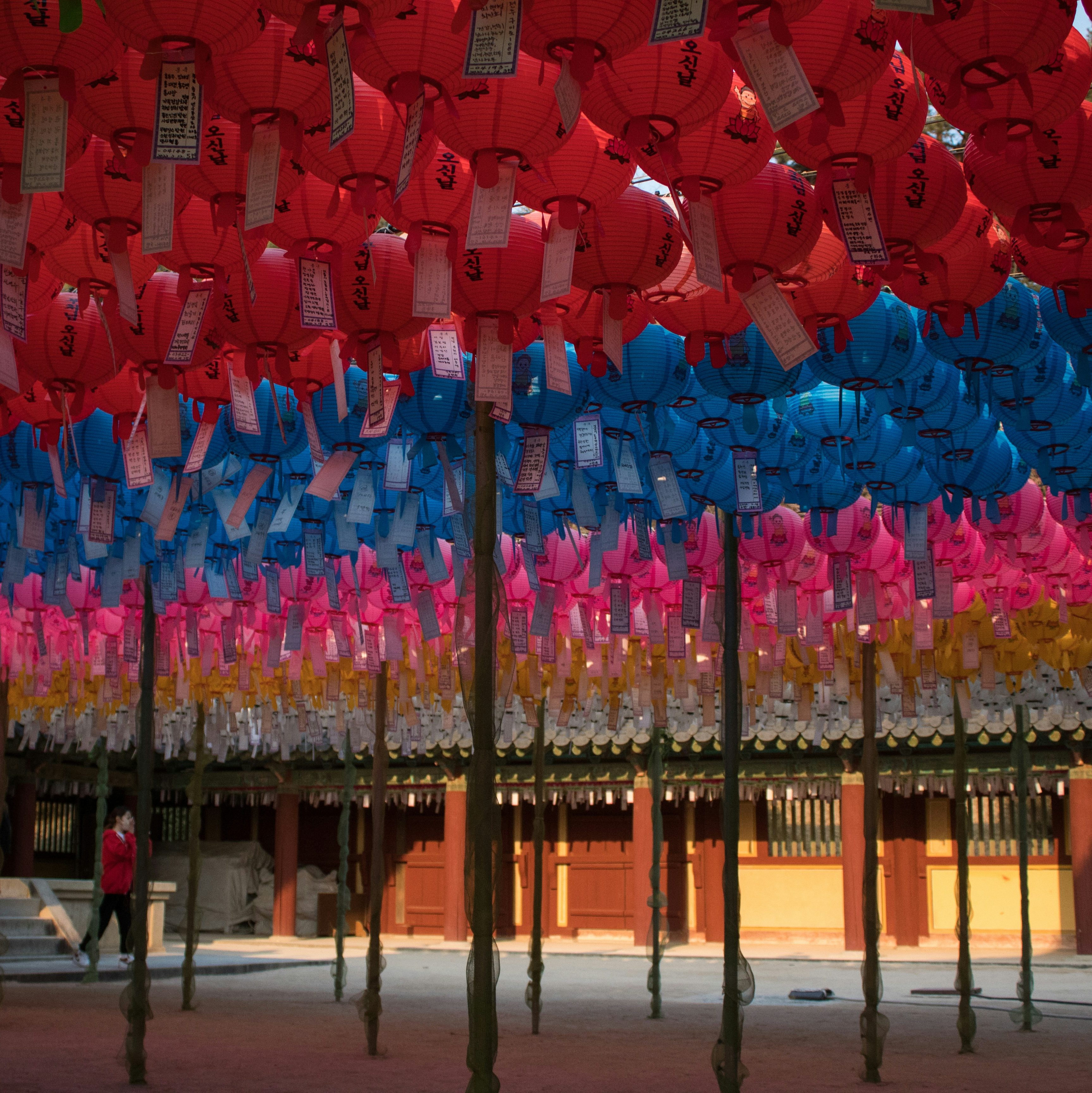
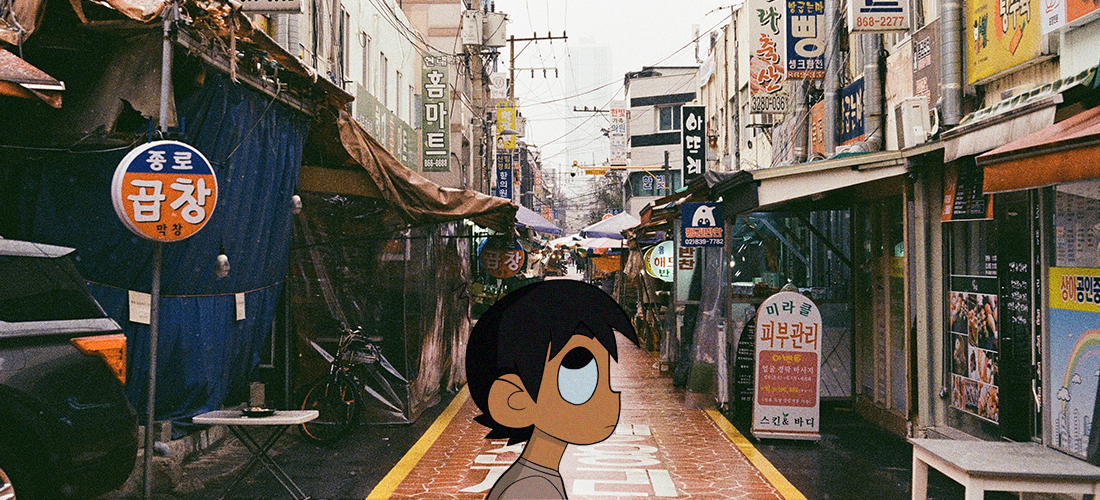
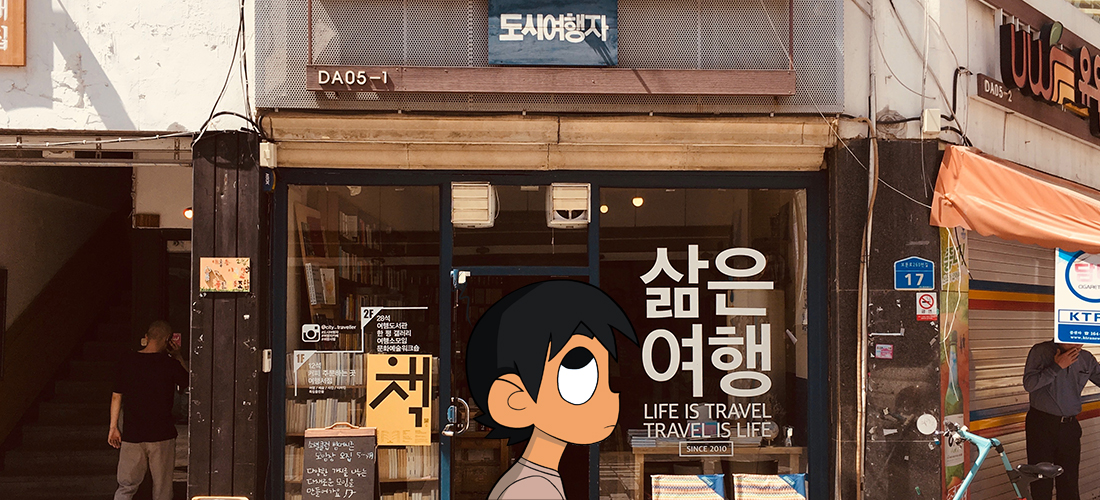
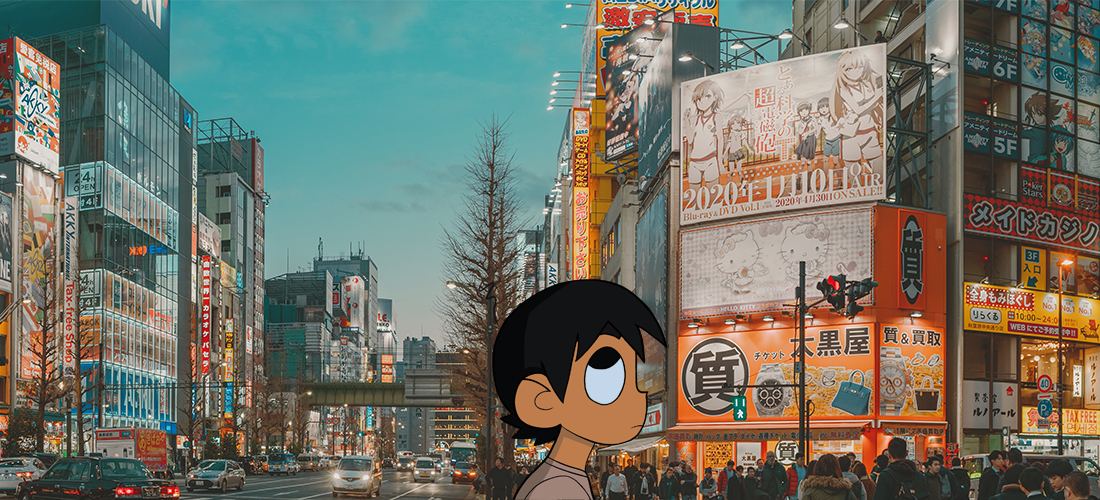
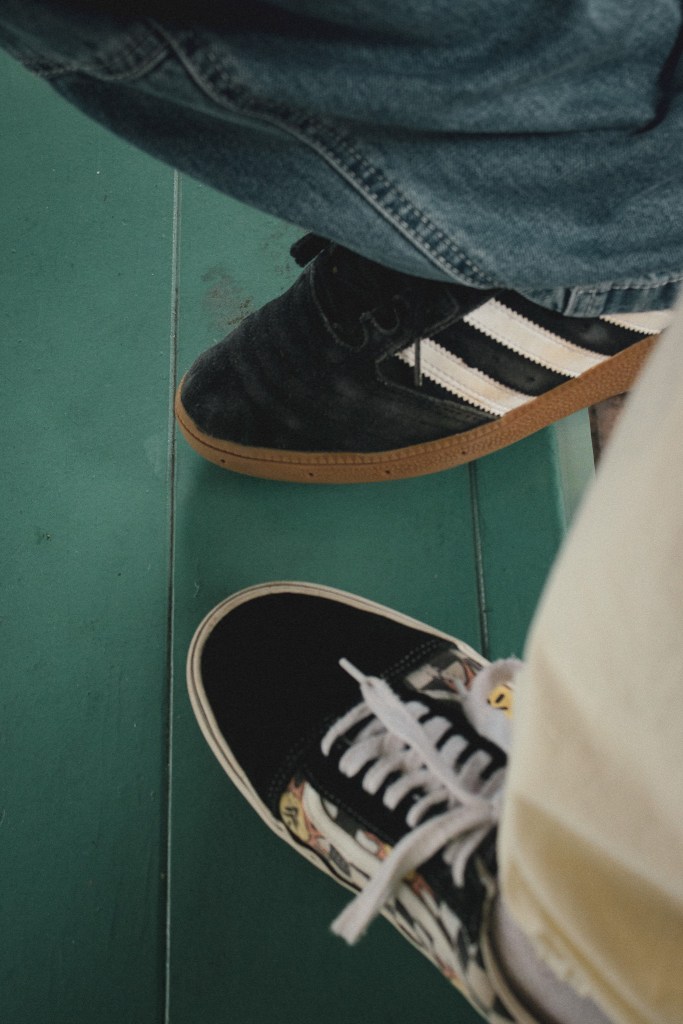
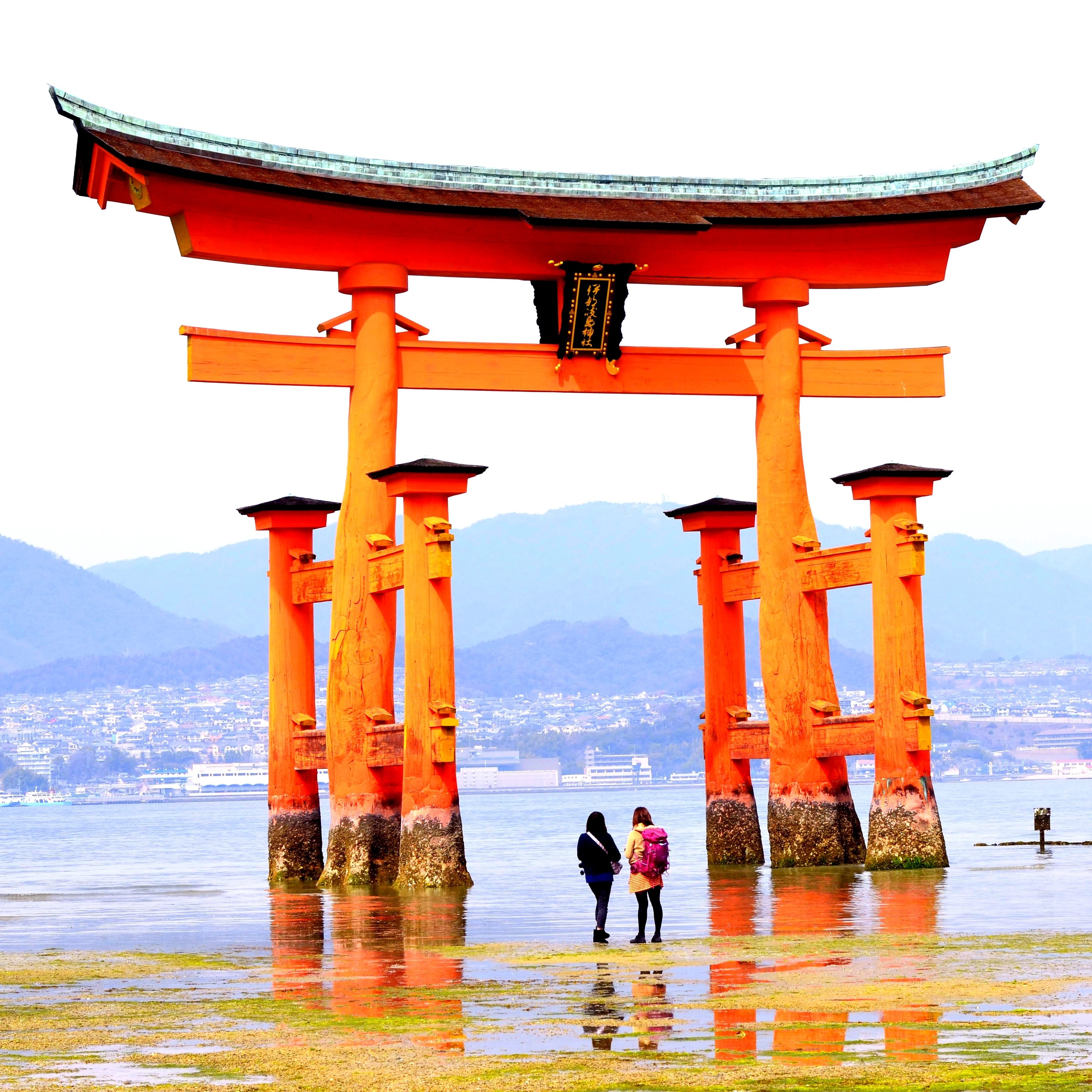
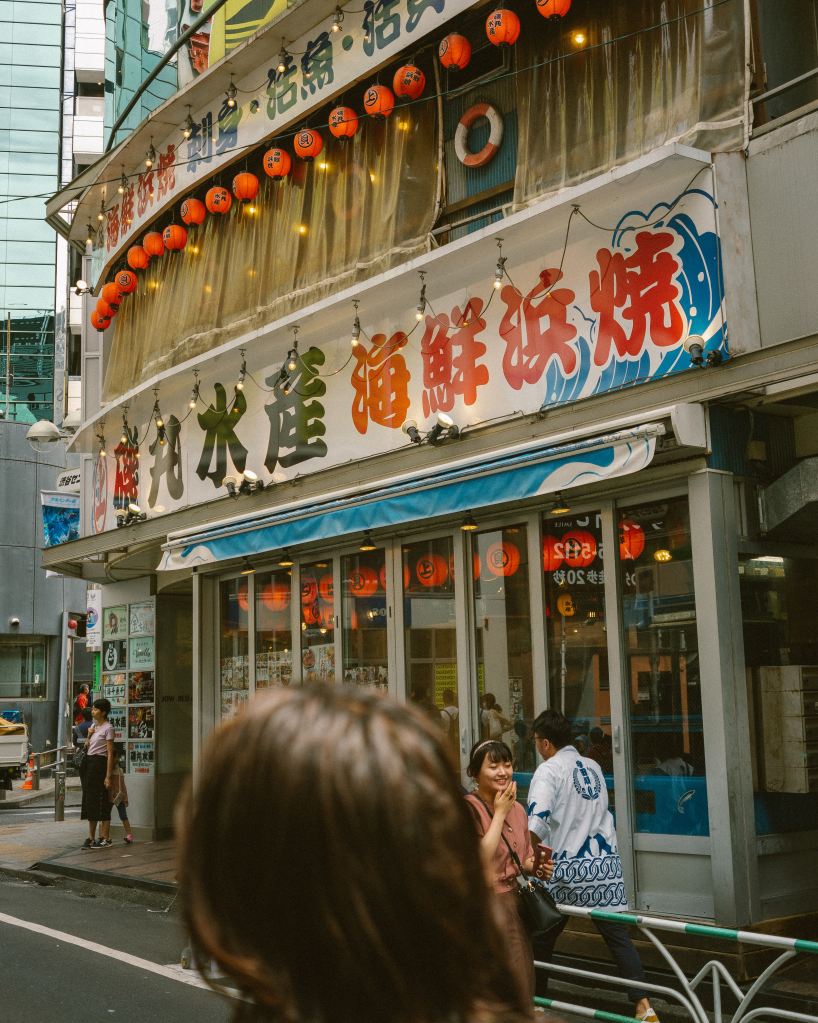
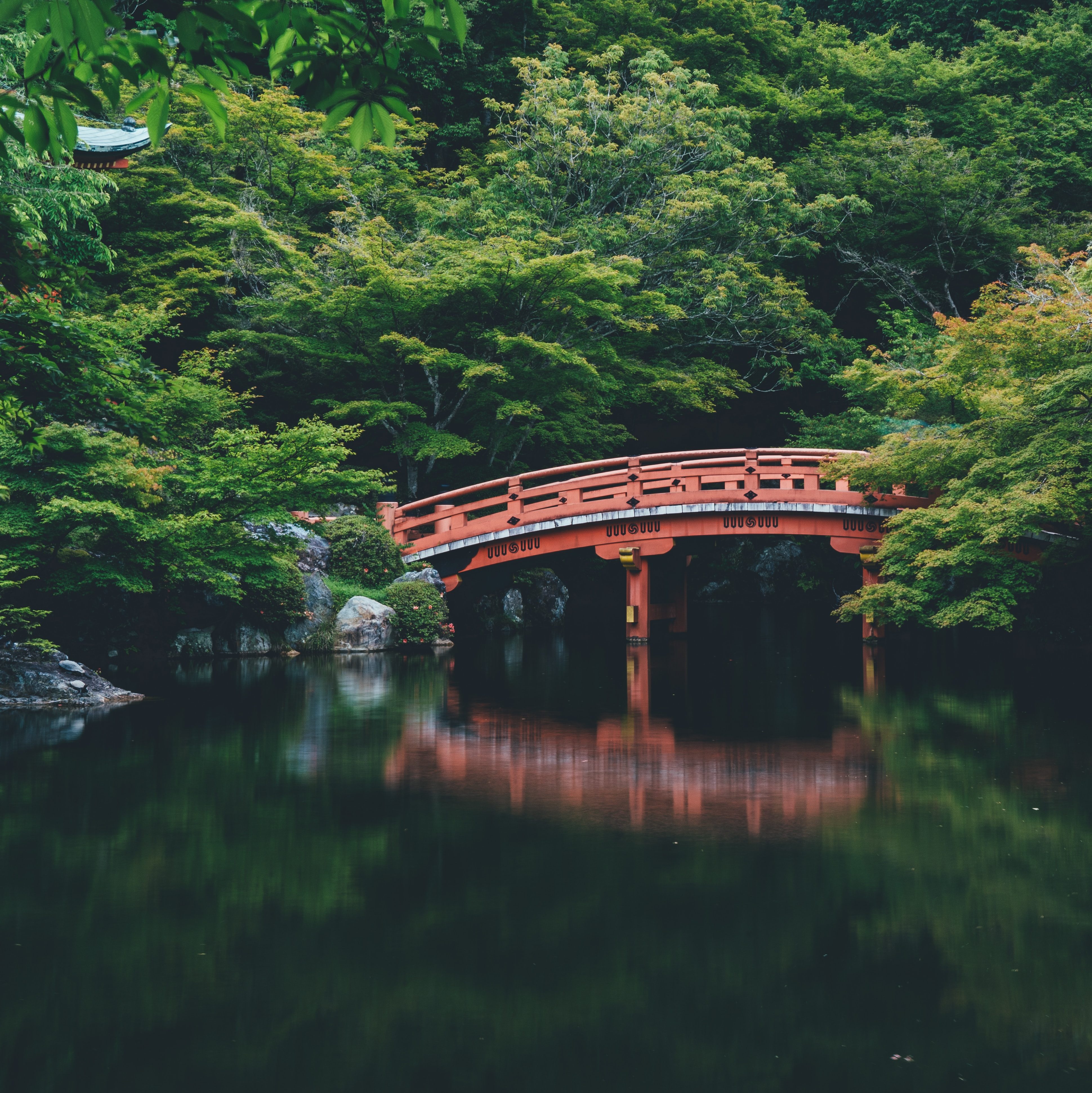
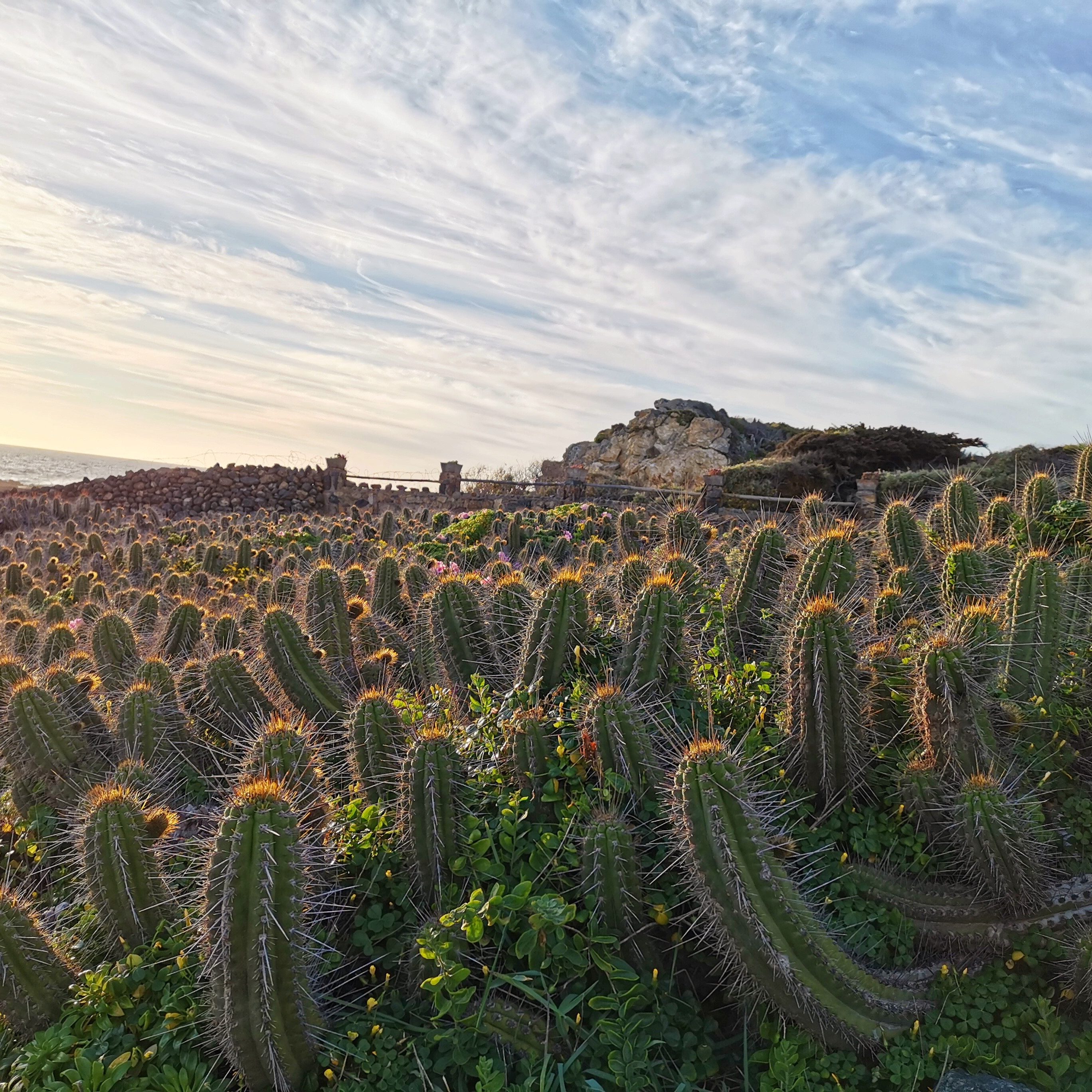
Photo by Hyeongmin on Unsplash; edited by Juan Castillo
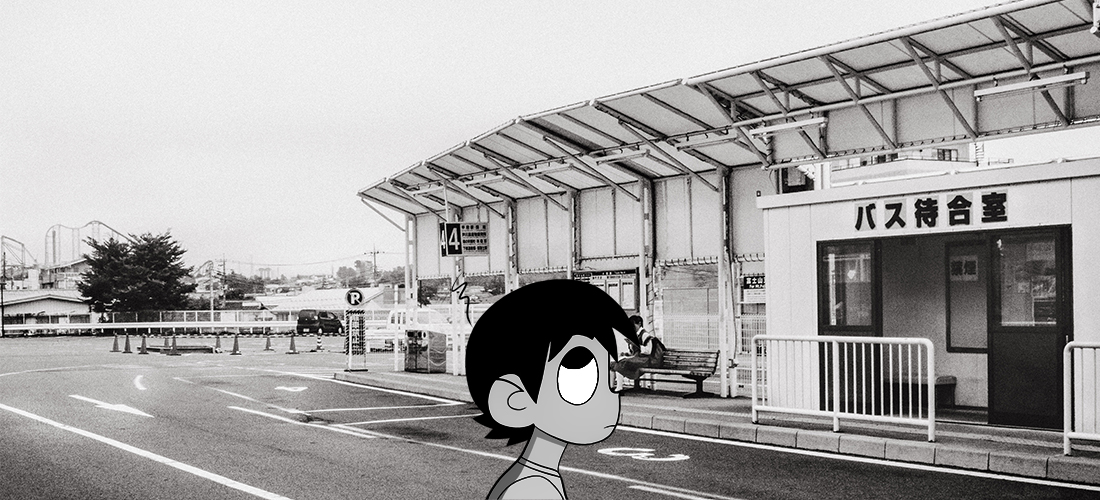
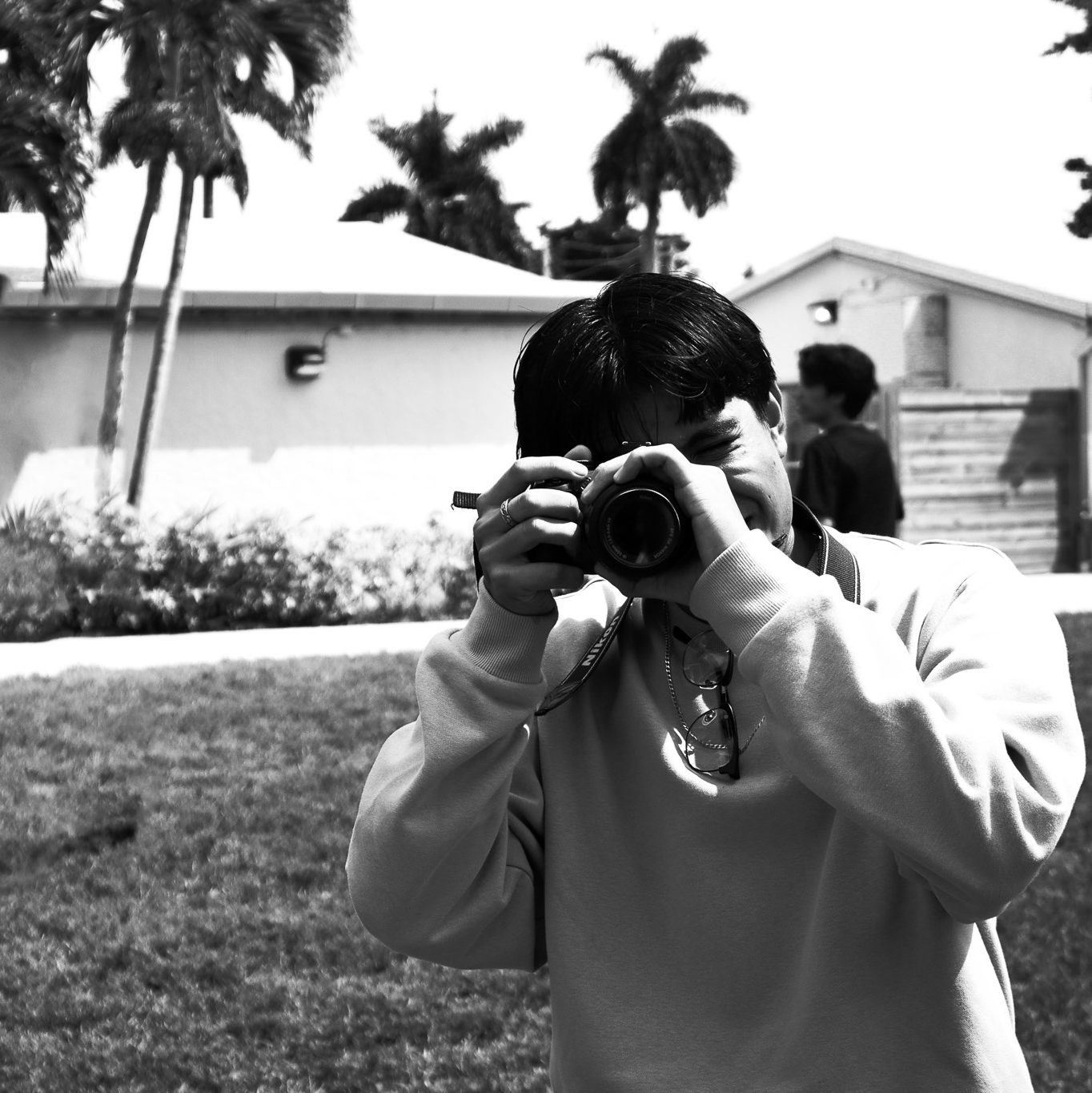
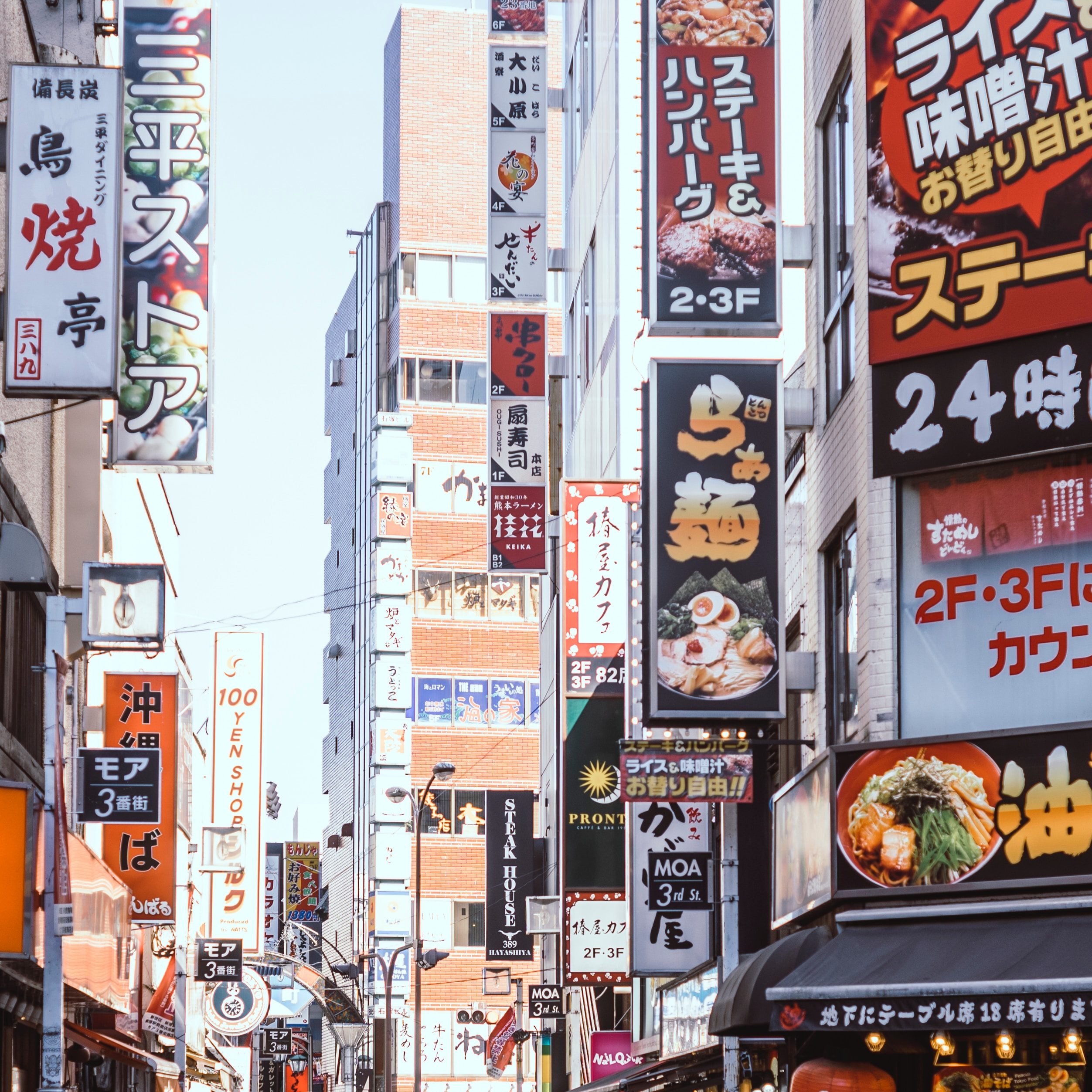
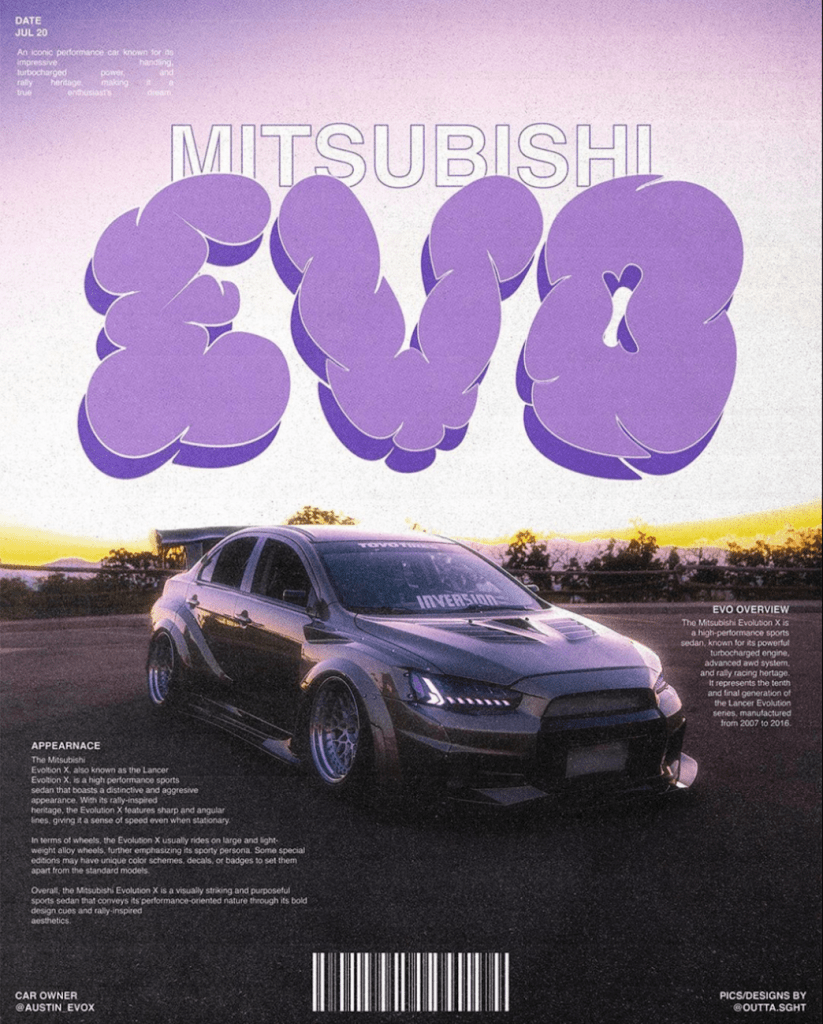
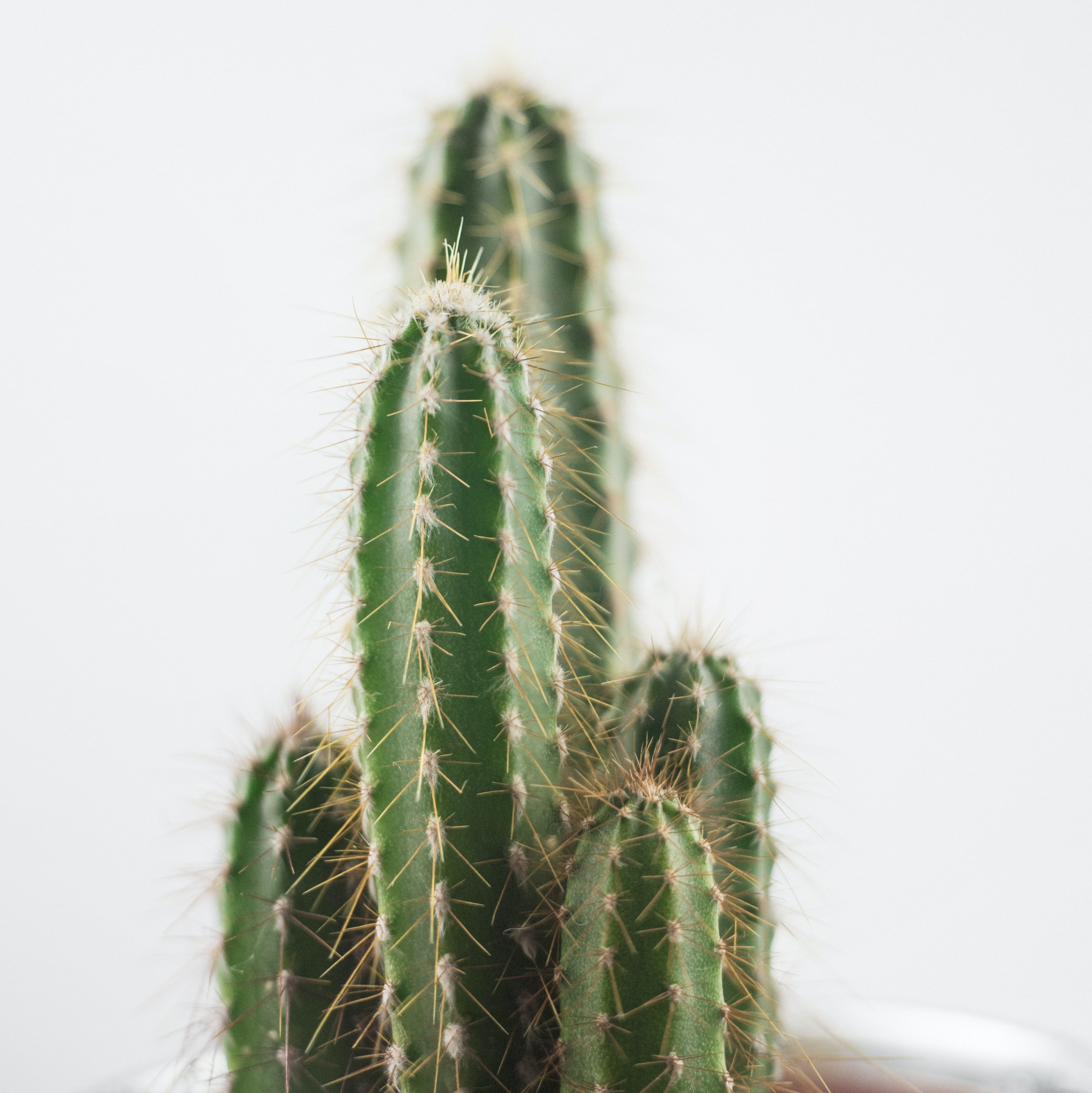
All photos used throughout the article by me.














 JUAN CSTL